Run Remote Linux Jobs from IRI Workbench
This article demonstrates how to run SortCL-compatible jobs configured in a local Linux installation of IRI Workbench on a remote Linux machine with a licensed CoSort SortCL executable.
This setup is useful when job design and deployment take place in different Linux environments. For example, the local system may provide a graphical environment for designing jobs, while the remote system serves as a multi-user production server for executing them.
If you need to launch Linux SortCL from IRI Workbench running on Windows, refer to the related article linked in the original tutorial.
In this example we are using the Ubuntu version of Linux on both the Workbench job design client and the server running the SortCL job. To set up the remote job, you must:
- Set up the Remote Connection
- Define the Remote Connection in IRI Workbench
- Create a New Remote Folder to Hold Project Assets
- Create a Remote Project
- Define the Remote Executable
- Launch the Remote Job from the Client
- Verify Job Results on the Server
Set up the Remote Connection
To connect two Linux machines, install and configure OpenSSH on both the client and server. OpenSSH provides tools for secure remote access, system control, and file transfer.
Unlike traditional tools such as Telnet and RCP, which can transmit passwords in cleartext, SSH encrypts communication between connected systems.
The OpenSSH server component, sshd, listens for incoming connections from SSH clients. When a client requests a connection, the server establishes the appropriate session.
To install OpenSSH on the client, run:
sudo apt install openssh-client
To install OpenSSH on the server, run:
sudo apt install openssh-server
In this example, IRI Workbench runs on a Linux desktop named Hydra, while the licensed SortCL executable resides on a Linux server named Cyclops.
First, establish an SSH connection between these two systems.
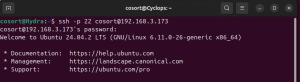
SSH uses port 22 by default, although the port can be changed. Also, specify the username in the connection command if it differs between the two systems.
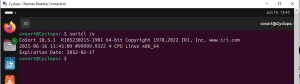
After installing CoSort on the remote server, you can verify that the SortCL executable is available and check its license by running:
$COSORT_HOME/bin/sortcl /versionThe following example shows the command executed on the remote Linux server.
Define the Remote Connection in IRI Workbench
To connect the Linux version of IRI Workbench to the remote server, use the Remote Systems Explorer (RSE) on the client machine. The RSE view should appear in the Workbench perspective by default. If it is not visible, open it from the Window menu.
In the Remote Systems Explorer view, click the leftmost icon to create a new connection.
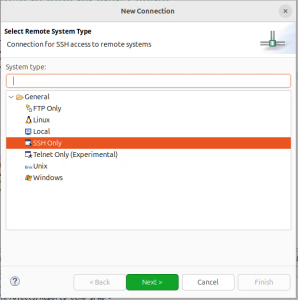
The New Connection dialog will appear. Select SSH Only, then click Next.
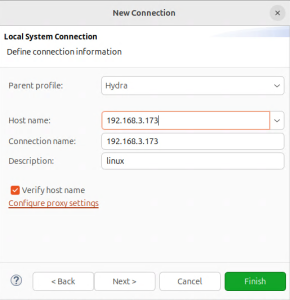
In the next dialog, specify the source machine name and the IP address of the remote server.
For this example, the source machine is Hydra, and the destination is Cyclops at 192.168.3.173.
After entering the connection information, click Finish.
Create a New Remote Folder to Hold Project Assets
The SortCL program on the remote server needs access to the resources required by the job. These may include job scripts, separate data definition file (DDF) metadata assets, and input files.
To make these resources available on the remote server, create a folder directly from the local IRI Workbench client through RSE.
In the Remote Systems Explorer view, select a top-level directory on the remote server. Then right-click and select New > Folder.
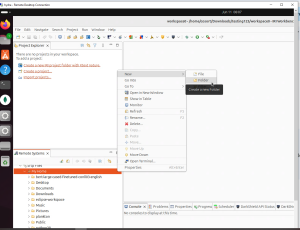
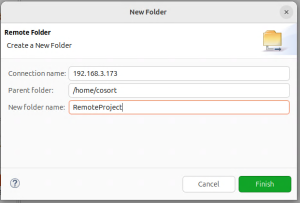
The New Folder dialog identifies the selected remote parent directory and allows you to name a new subfolder.
In this example, the new folder is named RemoteProject.
Create a Remote Project
You can create a remote IRI project linked to a local project within the new remote folder. This approach is more convenient than manually copying project files between the local and remote directories.
To create the project:
- Highlight the remote folder in Remote Systems Explorer.
- Right-click the folder, named
RemoteProjectin this example. - Select New > IRI Project.
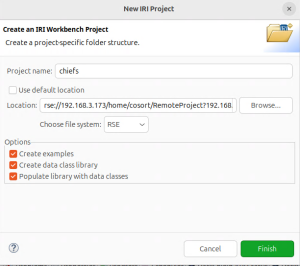
- In the New IRI Project dialog, enter a project name. Here, the project is named
chiefs. - Locate the project in the remote folder by selecting the RSE file system option. Use Browse to identify the appropriate remote path and IP address.
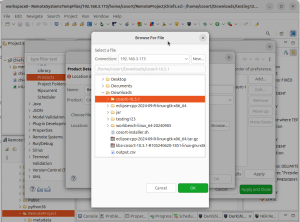
The Browse for File dialog displays the remote folder structure. Select the appropriate remote project location.
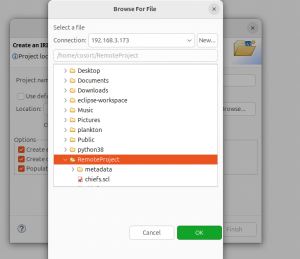
Click OK in the Browse for File dialog. Then confirm the project settings in the New IRI Project dialog and click Finish.
The remote project, chiefs, is now visible through the IRI Workbench Remote Systems Explorer.
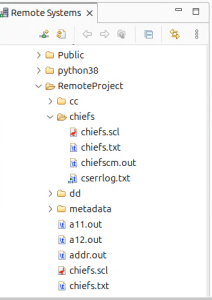
From here, you can use a job wizard in the local IRI Workbench project menu to create a job for the remote project.
Define the Remote Executable
Before running the remote job from your local IRI Workbench environment, define the location of the remote CoSort SortCL executable in the Workbench Preferences.
Follow these steps:
- Open IRI Menu > IRI Preferences > IRI > Products.
- Click Add.
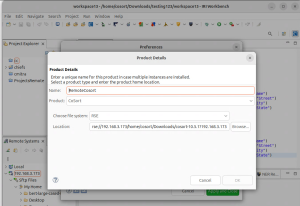
- Enter a name for the product configuration. In this example, use
RemoteCoSort. - Select CoSort from the product dropdown menu.
- Change File System to RSE.
- Browse to the CoSort location on the remote server.
- Click OK to save the configuration.
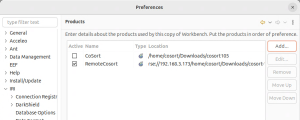
In this example, the remote CoSort product location is expressed as:
rse://192.168.3.173/home/cosort/Downloads/cosort-10.5.1?192.168.3.173The RSE location identifies the configured remote server and CoSort installation used in the example.
Use the Browse dialog to select the CoSort installation location on the remote server.
Launch the Remote Job from the Client
After configuring the remote executable, navigate to the project in Remote Systems Explorer.
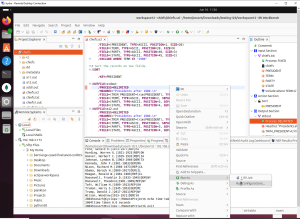
Expand the project and locate the .scl job script you want to execute.
Right-click the selected script, then choose IRI > Run As > Run Configuration.
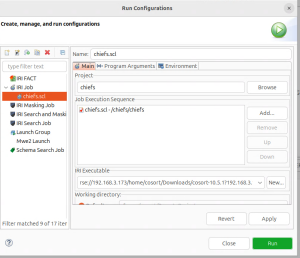
In the Run Configurations dialog, browse again to the same remote project and select the specific job script.
Next, confirm that the remote SortCL executable is selected. Once the configuration is complete, click Run to execute the job on the remote Linux server.
Verify Job Results on the Server
After executing the remote SortCL job, you can verify its results based on the output destination specified in the job script.
If the job directs output to standard output (stdout), you can view the results through the local IRI Workbench Console.
In the following example, the job writes data to stdout and also defines an output file.
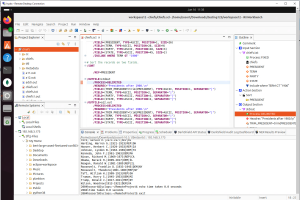
Alternatively, when the script specifies an actual output file, SortCL writes the results to the designated target on the remote server. You can then open and inspect the output file directly on that system.
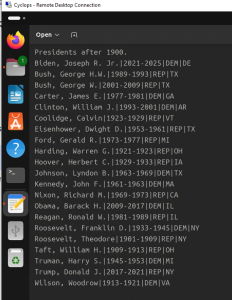
In addition to the output data, the remote SortCL job should generate several log files in the remote folder. These files can provide additional information about the job execution. If you have questions or need assistance configuring remote SortCL jobs, please contact support@iri.com.
Frequently Asked Questions
Can I run SortCL jobs on a remote Linux server from IRI Workbench?
Yes. IRI Workbench on Linux can configure and launch SortCL-compatible jobs on a remote Linux server using Remote Systems Explorer and a licensed CoSort SortCL executable.
What is required to connect IRI Workbench to a remote Linux server?
The process described here uses OpenSSH on the client and server, an SSH connection configured through RSE, and a licensed CoSort SortCL executable on the remote machine.
Why do I need to create a remote project?
A remote project provides a location for the job scripts and supporting assets that SortCL needs during execution. It also allows you to manage the project through the local IRI Workbench interface instead of manually transferring files.
How do I configure the remote SortCL executable?
In IRI Workbench, open the IRI product preferences, add a CoSort configuration, select RSE as the file system, and browse to the remote CoSort installation.
Where can I view the results of a remote SortCL job?
You can view standard output in the local IRI Workbench Console. If the job specifies an output file, you can access that file on the remote Linux server.