Masking RDB Data in the DarkShield GUI
Editor’s Note: This article is part of a series about using IRI DarkShield to discover and mask sensitive data in relational databases. DarkShield’s support for relational database (RDB) sources can complement or, in certain use cases, replace IRI FieldShield for similar data classes, location-based searches, and masking functions for certain use cases.
Introduction
IRI DarkShield provides specialized wizards in the IRI Workbench integrated development environment (IDE) for finding, classifying, and masking sensitive data in different sources. These include structured, semi-structured, and unstructured files, NoSQL databases, and relational databases (RDBs). DarkShield supports relational databases accessible through a JDBC driver connection.
This article focuses on using the DarkShield Relational DB Search/Masking Job wizard to discover and mask personally identifiable information (PII) stored in relational databases. It explains the prerequisites, configuration steps, masking rules, and job execution options using an example database.
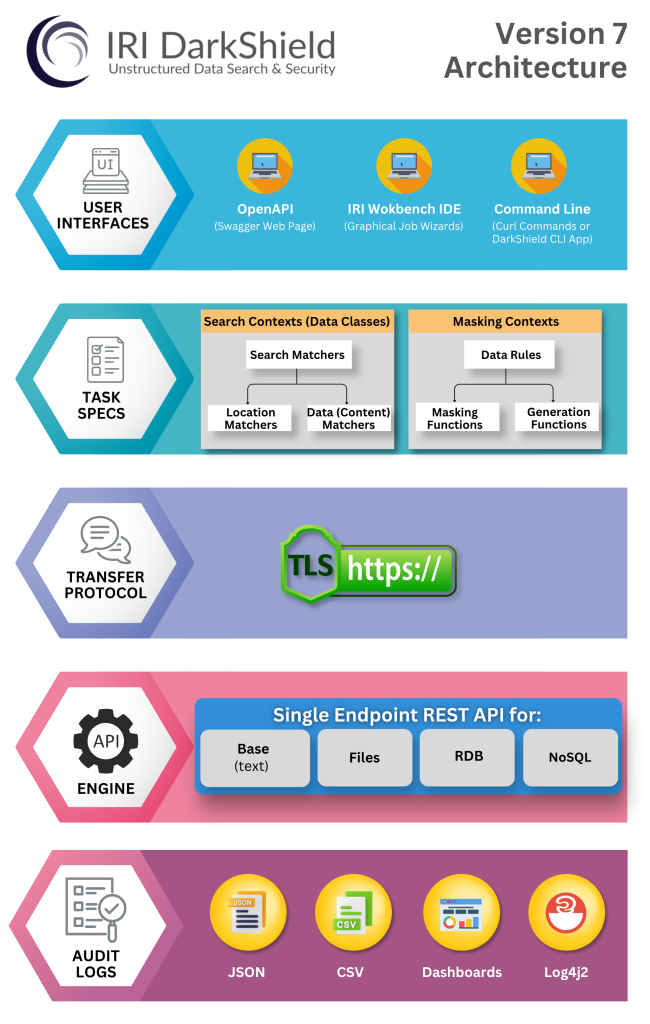
The following diagram illustrates the DarkShield architecture and its components. The wizard demonstrated here runs within IRI Workbench.
DarkShield also provides other source-specific wizards, including the New File Search/Masking Job wizard for files and the New NoSQL DB Search/Masking Job wizard for NoSQL databases. Those workflows are outside the scope of this article.
What the DarkShield Relational DB Wizard Does
The New Relational DB Search/Masking Job wizard in IRI Workbench creates a DarkShield job configuration file with the .dsc extension. The file contains the Search Contexts and Mask Contexts required for the specified database operations.
These contexts serve different purposes:
- Search Contexts define how DarkShield connects to a relational database instance and searches for PII.
- Mask Contexts determine how the discovered PII is masked and how DarkShield accesses the target database where the masked data will be written.
DarkShield searches and remediates database content according to Data Classes defined in an IRI Data Class and Rule Library. Each Data Class contains one or more search methods, called Search Matchers, for identifying sensitive information.
Earlier versions of the wizard supported searching and extracting sensitive values using Java regular expressions (RegEx) and Set File lookups. The wizard now supports additional search methods, along with separate or combined search and masking operations for DarkShield or Voracity users. For more information about these search capabilities, see Data Matchers and Location Matchers.
Prerequisites
Before launching the DarkShield RDB wizard, ensure that you have completed the following preliminary steps.
1. Configure DarkShield API Preferences
First, verify that the DarkShield API distribution directory is specified in IRI Workbench
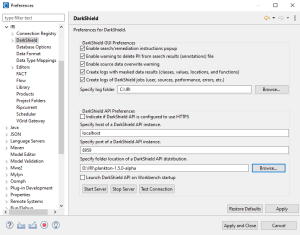
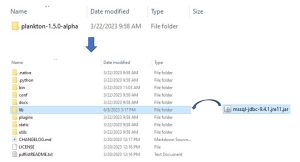
If the DarkShield API distribution (Plankton) has not been specified in Preferences, or if your DarkShield Job will use a different DarkShield API distribution, you must manually place the JDBC drivers associated with the database silos in the lib folder of the DarkShield API distribution that will be used.
2. Prepare an IRI Data Class and Rule Library
Second, all DarkShield wizards require an IRI Project containing an IRI Data Class and Rule Library.
The IRI Library must contain at least one Data Class and a masking Rule that can be assigned to that Data Class. The Data Classes identify PII, while the assigned masking Rules determine how the PII will be protected. To learn more about creating Data Classes and Rules in an IRI Data Class and Rule Library, read this article about IRI data classification.
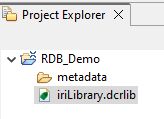
IRI Project containing IRI Library.
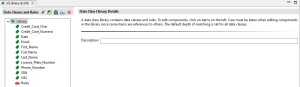
IRI Data Class and Rules Library Form Editor contains some Data Classes and Rules.
3. Verify the DarkShield API Server
Next, confirm that the Plankton (DarkShield API) server is running.
You can do this by opening the DarkShield API Status view in IRI Workbench. This view displays information about the DarkShield API, including whether the server is currently running.
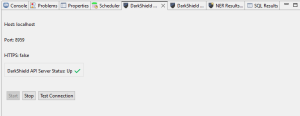
DarkShield API Status view panel
4. Configure Source and Target Database Connections
Finally, the Data Source Explorer in IRI Workbench should contain data connection profiles for both the source and target RDB silos.
The destination silo must also contain an existing schema. DarkShield will attempt to create and populate the tables in the target schema automatically. However, the automatic derivation of a CREATE TABLE statement is not guaranteed to be correct.
If DarkShield cannot successfully create a target table when the job runs, you must create that table beforehand. If a data source connection profile does not already exist, you can create it during the later steps of the DarkShield RDB wizard. For an example of configuring a data source connection profile in IRI Workbench, see the JDBC section in this article.
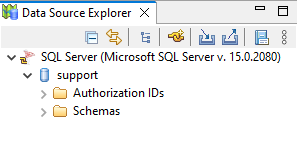
Source and Target Tables Used in This Demonstration
For this demonstration, I will search a table called DARKSHIELD inside a schema named IRI.
The DARKSHIELD table contains a combination of columnar values, free-floating text, and binary data. These different types of database content may contain PII that needs to be discovered and masked.
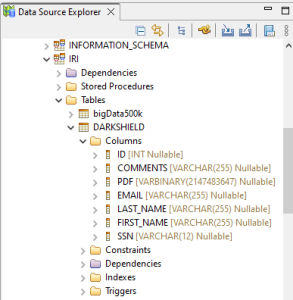
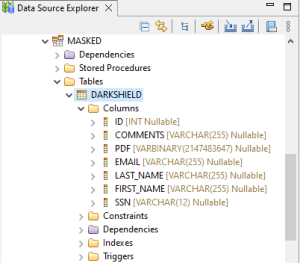
I will write the masked data to an empty table, also called DARKSHIELD, inside a separate schema named MASKED. The target DARKSHIELD table contains the same columns as the original table in the IRI schema.
Using the Wizard
The following steps demonstrate how to create a DarkShield RDB search and masking job using the New Relational DB Search/Masking Job wizard.
Step 1. Open the Relational DB Wizard
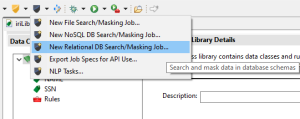
To open the wizard, select the DarkShield menu dropdown in IRI Workbench. Then choose New Relational DB Search/Masking Job.
The wizard opens the first page, where you can name the new DarkShield Job. Here, you also specify the folder and file names for the wizard’s output.
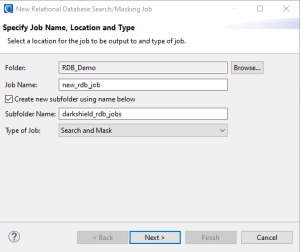
When finished, click Next to configure the types of sensitive data and PII you want to find, along with the Masking Rules that will be applied to the discovered information.
Step 2. Select Data Classes and Masking Rules
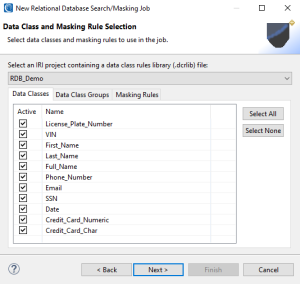
On the next wizard page, specify an IRI Data Class and Rule Library containing the Data Classes, Data Class Groups, and Rules you want to use.
You can filter the Data Classes and Data Class Groups from the library by selecting or deselecting entries in the Active column. This selection determines which Data Classes and Data Class Groups DarkShield will use when searching for sensitive data and PII.
For this demonstration, I am using the default Data Classes provided when creating an IRI Project.
Next, open the Masking Rules tab.
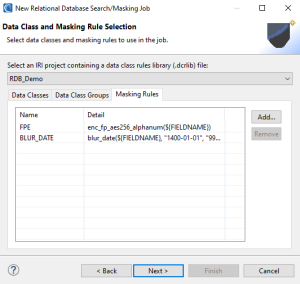
In this example, the library contains two masking functions:
- Format Preserving Encryption (FPE): The masking rule used for the applicable selected Data Classes.
- Blur Date: The masking rule used for date values assigned to that rule.
These Masking Rules determine how the PII found using the selected Data Classes will be masked. You can also add or remove Masking Rules from this tab.
Once you have selected the required Data Classes, Data Class Groups, and Masking Rules, click Next. The wizard will then allow you to assign the Masking Rules to specific Data Classes.
Step 3. Assign Masking Rules to Data Classes
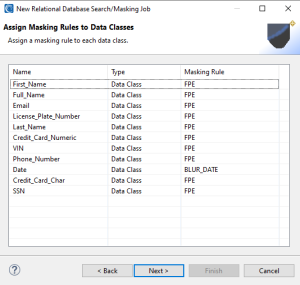
On the Assign Masking Rules to Data Classes wizard page, each Data Class and Data Class Group must be assigned a Masking Rule to indicate how PII will be masked.
If you do not wish to mask a particular PII data type, click Back and deselect the applicable Active checkbox in the Data Class or Data Class Group tab. Then return to this page and finish assigning the Masking Rules to the remaining Data Classes and Data Class Groups.
These assignments control how DarkShield will mask the PII identified by the configured Data Classes during the search operation.
Once finished, click Next to begin specifying the RDB silo that will be searched and masked.
Step 4. Select the Source Database and Schema
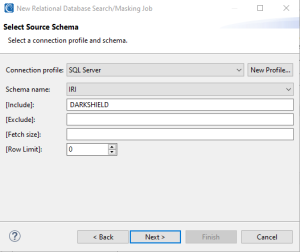
On the next wizard page, choose the Connection profile associated with the database you intend to scan from the dropdown menu. You can also create a new connection profile by clicking New Profile and following the configuration steps.
After selecting a connection profile, choose the schema to be accessed from the Schema name dropdown menu. Unlike FieldShield, DarkShield RDB jobs handle only one schema at a time. The wizard also provides several options for controlling which database tables and rows DarkShield will search or mask.
Include Pattern
The Include pattern option allows you to specify a Java regular expression defining which tables in the selected schema should be included in the DarkShield search or masking job. Any table names in the source schema that do not match the Include pattern will be ignored at runtime.
Exclude Pattern
The Exclude pattern option allows you to specify a Java regular expression defining which tables should be excluded from the search or masking job. Any table names in the source schema that match the Exclude pattern will not be included in the job.
Fetch Size
The Fetch Size option defines the number of rows from a table that DarkShield processes in a single batch. The default value is 1,024 rows. Generally, a smaller Fetch Size uses less memory but can reduce performance. Increasing the Fetch Size may improve processing performance. However, beyond a certain point, approximately 1,024 rows, there is usually minimal improvement in job execution time compared to the additional memory consumed.
Row Limit
The Row Limit option specifies the maximum number of rows that DarkShield will process, whether searched, masked, or both, in each table. These settings allow you to control the scope of the RDB job while managing the amount of database data processed.
Once satisfied with the source schema selection and processing options, click Next.
Step 5. Filter Data by JDBC Data Type
The next wizard page allows you to filter the data that DarkShield will search or mask according to its JDBC-defined data type.
On the JDBC Data Type Selection page, you can select the JDBC data types that should be included in the job. These selections restrict the search and masking scope to columns with the specified data types.
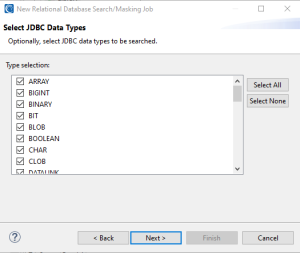
By default, all JDBC data types are set to true. DarkShield will not search or mask columns belonging to any JDBC data types you uncheck. Narrowing the scope of the job in this way can improve DarkShield’s overall performance by excluding database content that does not need to be searched or masked.
For example, suppose your database has binary columns containing files that may or may not include sensitive data. However, your data governance team has determined that those files are no longer required and will be purged from the database.
For example, suppose your database has binary columns containing files that may or may not include sensitive data. However, your data governance team has determined that those files are no longer required and will be purged from the database.
In that situation, you can exclude the LONGVARBINARY data type from the DarkShield job. This prevents DarkShield from searching or masking that type of data, which can improve processing speed.
Once you have finished filtering the input data types, click Next to continue to the Target Schema page.
Step 6. Select the Target Database and Schema
On the Target Schema page, specify the destination for the masked content.
Important: If the source and destination are the same, the original data will be overwritten.
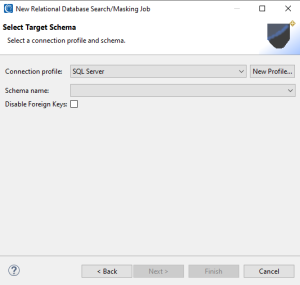
Any driver properties specified in the source and target database connection profiles are passed through to the DarkShield API.
For the target of the operation, select a database from the available connection profiles. Then select an existing schema in that database. You can also choose whether DarkShield should attempt to automatically disable foreign keys in the target schema while running the job. Any foreign keys that DarkShield successfully disables during the job will be automatically re-enabled before the job finishes.
This option only has an effect when the target schema belongs to one of the following databases:
- SQL Server
- MySQL
- Oracle
- PostgreSQL
- DB2
DarkShield will also attempt to generate target tables automatically using the Data Definition Language (DDL) of the source database. However, automatic table generation may fail if the target database differs from the source database because different database systems may use different DDL syntax.
If the target database already contains tables with the same names as the source tables being processed, DarkShield will truncate the data in those target tables at the start of the job, before inserting the masked data.
If the target database is the same as the source database, DarkShield will update the data as the job runs.
After reviewing the target schema and related settings, click Finish. The wizard will generate a DarkShield Job file with the .dsc extension.
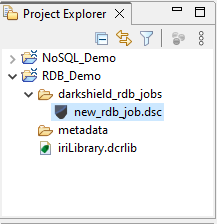
Project containing RDB .dsc file
DarkShield Job Editor
Every .dsc file can be opened and viewed in the DarkShield Job Editor. This editor allows you to modify the DarkShield Job parameters after completing the steps in the DarkShield RDB wizard.
For example, you can add, edit, or remove a source and/or target from the .dsc file by clicking the Edit button beside the source or target configuration.
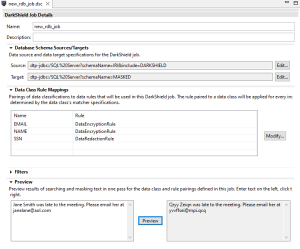
From the editor, you can also modify the Data Class Rule Mappings by clicking Modify. You can choose a different IRI Data Class and Rule Library and/or rearrange the Masking Rules assigned to your Data Classes.
Finally, the editor provides a Preview option that lets you test your Data Class Search Matchers and Masking Rules using sample text input. By clicking Preview, you can see what PII the selected Data Classes find and how the matching PII is transformed using the current Data Classes and Masking Rules. This allows you to review the configured PII search and masking behavior before running the job against your relational database.
Running Your Search and Masking Jobs
You can use your DarkShield Job configuration in three different ways.
1. Search Job
A Search Job identifies PII in the specified data source and logs the search results to a file without performing the masking operation. Be aware that the search result files, which use the .*annotations.json naming pattern, may contain PII discovered in your data sources.
The location of these JSON files depends on the DarkShield API used. The DarkShield Base and File API save the JSON files in your workspace. However, the DarkShield NoSQL and RDB API store the search results in the directory specified in the DarkShield API configuration file.
2. Masking Job
A Masking Job uses the search log generated by a previous Search Job to mask the discovered PII. This allows you to perform the PII discovery and masking operations separately.
3. Search and Masking Job
A Search and Masking Job searches for PII and masks the discovered sensitive values within a single job.
In this demonstration, I will run a DarkShield Search and Masking Job.
Running the DarkShield Search and Masking Job
To run the job, right-click the .dsc file in IRI Workbench and select IRI > Run Search and Masking Job.
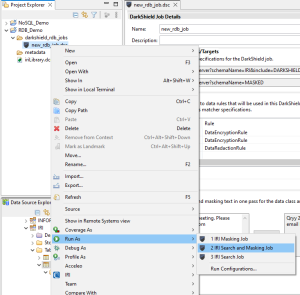
After running the Search and Masking Job, DarkShield masks the PII found during the search operation and writes the masked data to the target silo specified earlier in the wizard.
Reviewing the Original and Masked PII
The following examples show the source and target tables before and after the DarkShield search and masking operation.
These tables contain a mixture of structured and unstructured data, including PII stored in database columns and binary content within a PDF column.
Original Source Table
The following image shows the DARKSHIELD table in the IRI schema. The table contains various PII values, along with binary data stored in the PDF column.
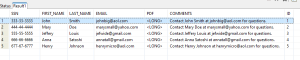
Table DARKSHIELD from IRI schema containing various PII and binary inside the PDF column
Original PDF with Unprotected PII
The binary content stored in the PDF column can be converted into a PDF document. The following image shows the original PDF containing unprotected PII.
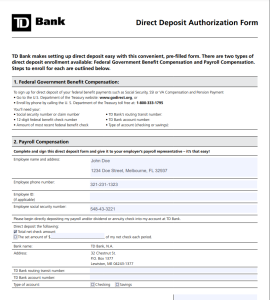
Binary in PDF column converted to PDF with unprotected PII
Target Table After Masking
After the DarkShield Search and Masking Job runs, the DARKSHIELD table in the MASKED schema contains the masked PII values. The table also contains the binary content from the PDF column after the masking operation.
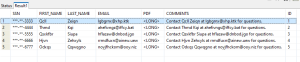
Table DARKSHIELD from MASKED schema containing various PII and binary inside the PDF column
PDF with Protected PII
The following image shows the PDF content extracted from the masked table. The PII within the PDF document has also been masked by DarkShield.
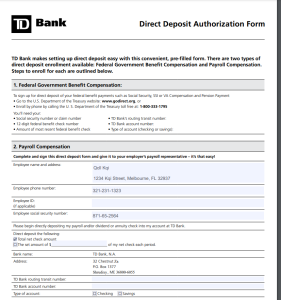
Binary in PDF column converted to PDF with PII-protected
These results demonstrate how DarkShield can find and mask PII in both conventional relational database columns and binary content that contains unstructured information, such as PDF documents.
Frequently Asked Questions
Can DarkShield find and mask PII in relational databases?
Yes. IRI DarkShield can search for and mask PII in relational databases accessible through JDBC connections. The Relational DB Search/Masking Job wizard lets users select Data Classes, configure Search Matchers, assign Masking Rules, and specify the source and target database schemas.
How does DarkShield determine which PII to mask?
DarkShield uses Data Classes and Data Class Groups configured in an IRI Data Class and Rule Library to identify PII. Each Data Class contains one or more Search Matchers. Users assign Masking Rules to the selected Data Classes to determine how the discovered PII will be transformed.
Can DarkShield mask PII stored in PDF files inside relational database columns?
Yes. As demonstrated in this article, DarkShield can find and mask PII within PDF content stored in a binary column of a relational database. The example shows both the original PDF containing unprotected PII and the PDF with protected PII after masking.
Can I limit which relational database tables and data types DarkShield searches?
Yes. The wizard provides Include and Exclude patterns to control which tables are processed within a selected schema. You can also filter columns by JDBC-defined data types and configure Fetch Size and Row Limit settings to control processing.
What is the difference between a Search Job, a Masking Job, and a Search and Masking Job?
A Search Job finds PII and saves the discovery results in a JSON annotation file. A Masking Job uses a previously generated search log to mask the discovered PII. A Search and Masking Job combines both operations, allowing DarkShield to find and mask PII in a single job.
Getting Help with DarkShield RDB Search and Masking
If you would like help using the DarkShield RDB wizard to search for and/or mask PII in your relational database, or if you need assistance working with other supported data sources, please contact your IRI representative or email darkshield@iri.com.