AI Data Classification for RDBs
Introduction
Data Classification in the IRI Workbench GUI is used to name and find specific kinds of data, usually Personally Identifiable Information (PII), and to consistently apply chosen functions, such as pseudonymization, to each data class. Applying deterministic masking functions to data classes preserves referential integrity in IRI FieldShield and DarkShield data masking results.
Defining and locating data classes can be time-consuming in a relational database with hundreds of tables and thousands of columns. Examples include names, addresses, IDs, phone numbers, and credit card numbers. New IRI AI functionality can now accelerate this process.
The new AI Schema Data Classification wizard scans relational schemas to identify data classes. It can also assign default masking rules to those classes. As a result, FieldShield, DarkShield, and Voracity users can build RDB data discovery and de-identification jobs sooner. 1 much sooner than they could before.
This RDB discovery feature is another application of AI in IRI data masking tools. For example, DarkShield uses AI to discover and mask names in unstructured text through Named Entity Recognition (NER) models. It can also detect signatures in documents. IRI will also use AI to protect faces, PII in handwriting, and complex address presentations.
Where to Find the AI Schema Data Classification Wizard
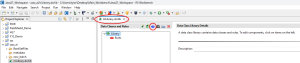
You can find the AI Schema Data Classification wizard inside the Data Classes and Rules (iriLibrary.dcrlib) dialog in IRI Workbench.In the top toolbar, a Robot icon appears next to the Data Class creation button. Click it to open the new AI scanning tool.
How AI Schema Data Classification Helps
The wizard helps database users set up data classes faster. Even if the suggested default rule does not fit your use case, the wizard still creates the Data Class and its Location Matcher for you.
Supported Data Classes and Default Masking Rules
The current AI model uses pattern matching, context, custom logic, and checksums to search for 29 data classes. It assigns each class the default masking rule shown below.
| Data Class Name | Description | Default Masking Rule |
| Phone Number | Telephone number (multiple formats) | FPE |
| IP Address | IPv4 or IPv6 Internal Protocol address | FPE |
| Email Address | RFC-822 validated email address | FPE |
| Location | City, province, region, country, ocean | Pseudonymization |
| Person | First, middle, last or full name | Pseudonymization |
| NRP | Nationality, religious or political group | Pseudonymization |
| Credit Card | 12-19 digit credit card # | Synthesis |
| Date/Time | Dates and time periods < 1 day | FPE |
| Crypto | Cryptocurrency (Bitcoin) wallet number | FPE |
| Medical License | Common medical license numbers | FPE |
| IBAN Code | International Bank Account Number | FPE |
| URL | Uniform Resource Locator (web address) | FPE |
| Australia Business | 11-digit ID for Australian Business Register companies | FPE |
| Australia Company | 9-digit ID for Commonwealth Corporations Act companies | FPE |
| Australia Medicare | Cardholder ID for medical expense rebates | FPE |
| Australia TFN | Tax file number (ATO ID) for every taxpaying entity | FPE |
| India PAN | 12-digit Permanent Account # (tax ID) | FPE |
| India Aadhaar | 12-digit individual identity # | FPE |
| India Vehicle | government-issued transport registration # | FPE |
| India Voter ID | 10-digit alphanumeric # for each citizen | FPE |
| India Passport | Indian passport # | FPE |
| Singapore NRIC | National Registration Identification Card # | FPE |
| UK NHS | 10-digit National Health System ID | FPE |
| UK NINO | National Insurance Number (also used for taxation) | FPE |
| US Bank Number | 8-17 digit bank account # | FPE |
| US Driver License | State driver license # in NTSI format | FPE |
| US ITIN | 9-digit Individual Taxpayer Identification Number | FPE |
| US Passport | 9-digit passport # | FPE |
| US SSN | 9-digit Social Security Number | FPE |
FPE means Format Preserving Encryption. Pseudonymization replaces the value with a realistic, non-reversible substitute. Synthesis generates a new PAN in the same format.
Configure Additional Data Classes and Rules
You cannot currently add classes to the scanning model. However, you can define additional Data Classes and Rules or modify the rules for the classes above. See this article on the Data Class and Rule Library for details on how to configure, group, and prioritize data classes.
Once your data class rules are defined, you can configure RDB data discovery and masking jobs. For DarkShield, use the New Relational DB Search/Masking Job wizard per this article. For FieldShield, see: 1) this article on the Schema Data Class Search wizard; 2) this article on the Data Class Map; and then, 3) this article on the New Data Class Map DB Masking wizard.
Using the Wizard
Prerequisites
- IRI Workbench (installed and open)
- Established JDBC database connection
Step 1: Launch the Wizard
With the iriLibrary.dcrlib file opened, select the Robot Icon.
Step 2: Configure the Scan
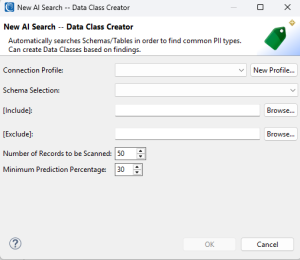
A new wizard menu appears with settings for the AI scan, as shown below. Each option controls part of the scan configuration.
Connection Profile: Select the JDBC-connected database instance you want to scan.
Schema Selection: The SCHEMA you want to scan.
[Include]: Scan ONLY these specific tables.
[Exclude]: Do NOT scan these specific tables.
[Amount of Records to be Scanned]: Specifies how many rows the wizard reads in each column. Scanning more rows may improve accuracy, but it can reduce performance.
[Minimum Prediction Percentage]: Sets the minimum AI confidence score shown in the results. The model still scans all the data, but it displays only predictions above this threshold. IRI recommends keeping the threshold relatively low so you can review both lower- and higher-confidence matches.
Step 3: Running the Scan
After you select OK, the wizard shows the AI model scanning and predicting. When the scan finishes, a results screen displays what the model found and how it scored each prediction.
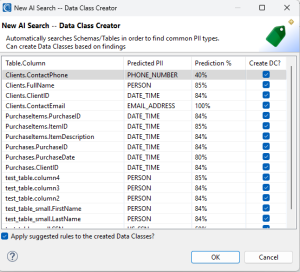
The following is a breakdown of what is shown on this screen:
Table.Column: Displays each table/column name where a data class was identified.
Predicted PII: Shows the model’s predicted PII type based on the scanned data. More than a dozen different labels of data are currently recognized in the model.
Prediction %: Shows how confident the model is that the predicted type is correct.
Create DC?: Lets you choose whether Workbench creates a Data Class from the AI result.
Finally, a button in the lower-left corner lets you apply suggested masking rules based on the predicted PII types. Workbench also creates a rule list so you can swap rules more easily if needed.
Please note that this is an AI model and the predictions will NOT be 100% accurate. IRI therefore recommends that you review everything the wizard produces to prevent PII leakage and preserve referential integrity (via consistent application of a deterministic masking function).
Selecting OK creates the Data Classes you selected. Workbench also creates a Data Class Group to keep them organized in the library.
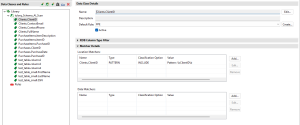
The new Data Class Group will have a prefix name of the scanned Schema. In my example, the Data Class Group name starts with tylorq. Within these newly created Data Classes, we can see a location matcher and a default rule applied (see above).
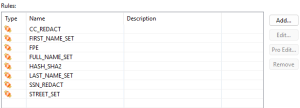
Looking inside the Rules library, we can see a list of created rules for easier application, with less manual user work:
Frequently Asked Questions
What does the AI Schema Data Classification wizard do?
It scans relational database schemas to identify likely sensitive data classes and can create corresponding Data Classes in IRI Workbench.
Can the wizard assign masking rules automatically?
Yes. The wizard can apply suggested default masking rules based on the predicted PII type.
Does the wizard work with FieldShield and DarkShield?
Yes. The Data Classes and rules it creates can support downstream discovery and masking jobs in FieldShield, DarkShield, and Voracity workflows.
Can users modify the AI-generated Data Classes and rules?
Yes. Users can review, adjust, or extend the created Data Classes and masking rules to better match their requirements.
Conclusion
This new AI Schema Data Classification wizard can speed your path to search and mask PII in VLDBs by reducing the setup time and work needed to define many of the data classes likely to occur. Again, this is a tool to help, but not replace or guarantee 100% definitional accuracy. Be sure to verify all classification results, rules, and data that you will touch.
Please email voracity@iri.com if you have any questions about, or need help with, this wizard.
- See this FAQ to learn which RDB masking use cases are best suited for FieldShield vs. DarkShield.