Securing IRI Jobs with the OGS PFM
With the release of CoSort Version 11, IRI introduced the Ops Governance System (OGS), a framework that provides runtime access control, audit logging, and optional tamper detection for SortCL-compatible jobs.
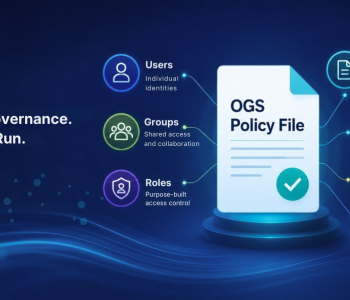
At the center of OGS is the Policy File, an encrypted JSON document that defines users, groups, roles, permissions, audit rules, and other governance settings. Because this file controls how operational governance rules are applied, it is important to understand how to create, maintain, and modify it securely.
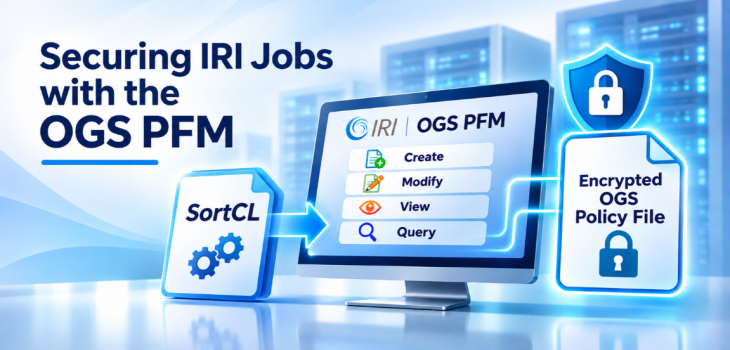
The Policy File Manager (PFM) provides this functionality through a command-line, menu-driven interface. The utility is included with every OGS-enabled installation of CoSort, FieldShield, NextForm, RowGen, and Voracity.
PFM supports several essential governance activities, including creating global Policy Files and job-specific sub-policy files, viewing and modifying existing policies, querying governance settings, and logging policy changes.
This article explains the purpose, benefits, and general operation of the PFM utility, including its four operating modes and how it supports secure governance configuration.
What the PFM Utility Is
The IRI documentation describes the Policy File Manager as a command-line, menu-driven program used to create, modify, and view SortCL operational governance rules.
The utility is located in the following directories:
- Linux:
$COSORT_HOME/bin/policy_file_manager - Windows:
%COSORT_HOME%\bin\policy_file_manager.exe
PFM is the only supported method for creating or modifying OGS Policy Files. This is because the files follow a strict JSON schema and are subsequently encrypted. Rather than editing the encrypted Policy File directly, authorized users work through the PFM interface to maintain the required structure and configuration.
Why the PFM Utility Matters
PFM provides a centralized way to manage the governance rules that control SortCL-compatible jobs. Its primary benefits include secure policy management, centralized configuration, change tracking, and support for both global and job-specific governance.
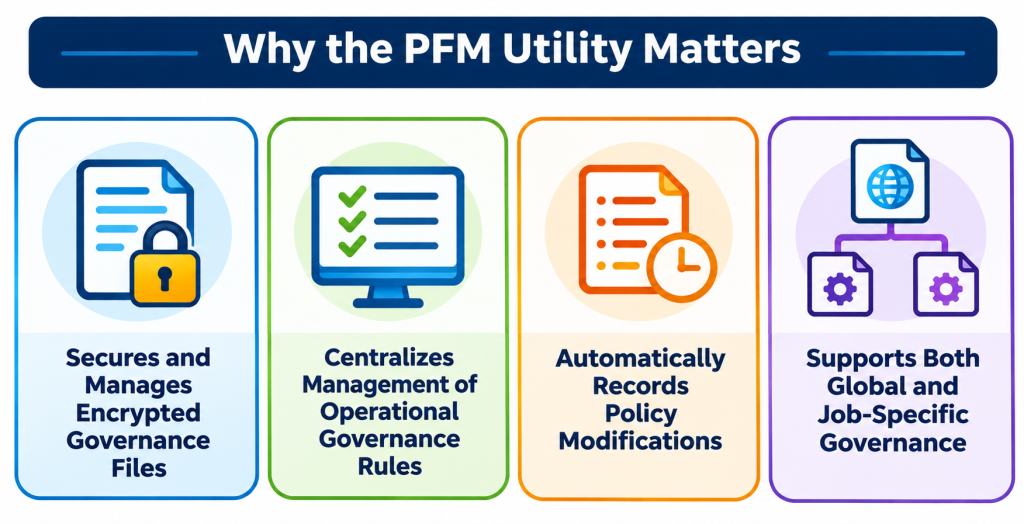
1. Secures and Manages Encrypted Governance Files
PFM provides the supported interface for creating, querying, displaying, and modifying encrypted Policy Files. Restricting access to policy modifications helps protect the Role-Based Access Controls (RBACs) defined in the Policy File. These controls determine which users, groups, and roles have access to governed resources and operations.
In addition, policy encryption and restricted modification access support zero-trust security objectives by helping protect governance rules against unauthorized changes. Together, these mechanisms help maintain the integrity of the operational rules defined through OGS.
2. Centralizes Management of Operational Governance Rules
PFM brings several governance configuration functions into a single interface.
Administrators can manage:
- Users, groups, and roles
- Form permissions, including FILES, FIELDS, TABLES, URLS, FUNCTIONS, and other governed forms
- Audit logging settings
- Script signature requirements
- Log retention policies
- Sub-policy file creation
By managing these settings through PFM, designated governors can maintain operational governance rules without directly modifying encrypted policy content. This centralized approach also helps maintain consistency when configuring access permissions, audit requirements, and other controls.
3. Automatically Records Policy Modifications
PFM automatically records modifications made to the Policy File, providing a change history that supports traceability and governance reviews.
These records are written to: policy_changes.txtThe file is located in:
- Linux:
$COSORT_HOME/etc - Windows:
%COSORT_HOME%\etc
The following excerpt illustrates the types of changes recorded in the file:
Date-Time           Log-In Source Form-Instance Action Reason
2026-06-11T15:20:41  susan PFM User - bmead Add
2026-06-11T15:22:45  susan PFM Group - Legal Add
2026-06-12T18:43:09  susan PFM Script - aggregate2.scl Delete
2026-07-22T20:34:35  susan PFM field - POLICY_NB Add
2026-07-30T14:29:00  susan PFM FIELDS - POLICY_NB Added reader 'bmead' to 'POLICY_NB'
In this example, each entry identifies susan as the logged-in user. This user has governor permission.
The records illustrate changes involving users, groups, scripts, and field permissions. By recording policy modifications, PFM provides information that can be reviewed during audits, compliance assessments, and investigations of configuration changes.
To learn how PFM configures audit logging for SortCL job execution, read OGS Audit Logs to Govern SortCL Jobs.
4. Supports Both Global and Job-Specific Governance
PFM can create and manage two types of governance files:
- Global Policy Files: Application-independent files containing the main governance configuration.
- Sub-policy files: Files that provide job-specific overrides to the main Policy File.
This distinction allows organizations to establish central governance settings while accommodating access requirements or other policy details associated with individual SortCL jobs. Sub-policy behavior, including its effect on the global Policy File’s FORMS section, is explained later in this article.
The Four Operating Modes of PFM
When launched, PFM presents four primary operating modes:
1) Create a new Policy file or Sub-policy file
2) Modify an existing Policy file
3) View an existing Policy file
4) Query an existing Policy file
Each mode supports a different activity in the policy management lifecycle.
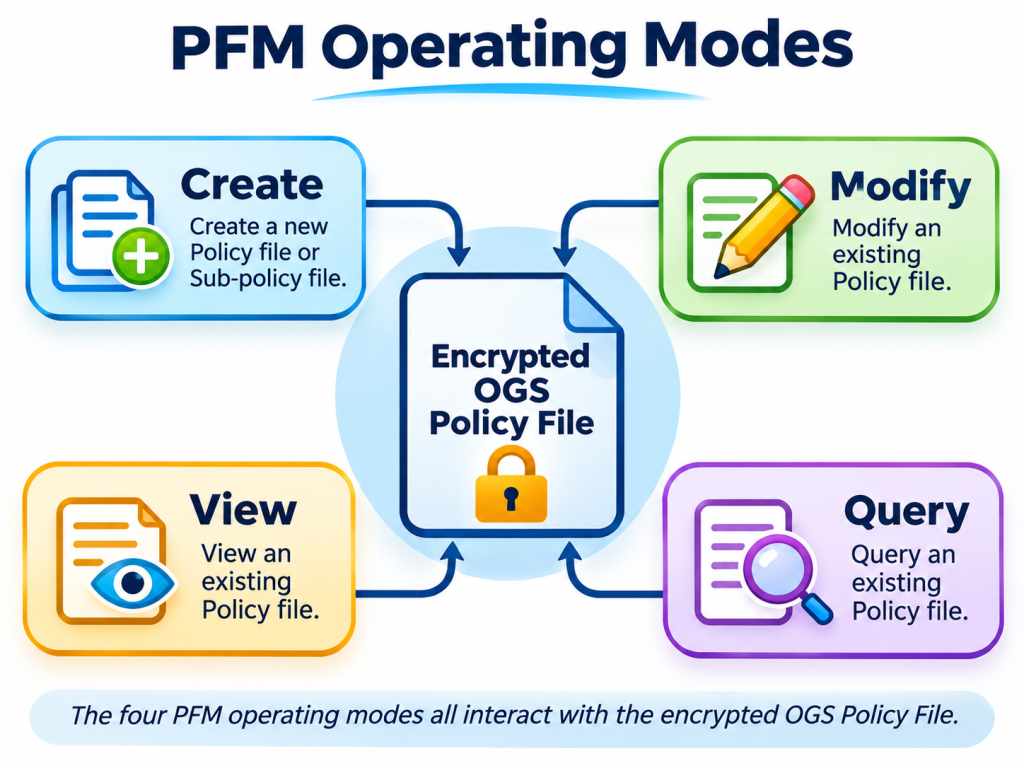
The following sections explain how these modes are used to create, maintain, inspect, and query governance configurations.
1. Creating a New Policy or Sub-Policy File
The first operating mode allows a governor to create either:
- A new global Policy File
- A new sub-policy file associated with a specific SortCL job
When a new Policy File is created, PFM generates a base or skeleton policy configuration. The skeleton Policy File initially contains:
- No users
- No groups
- No roles
- No governed forms
Consequently, the new Policy File is intentionally permissive until its governance rules are configured.
A designated Data Governor should perform this initial configuration and establish the necessary access permissions and other governance settings before the policy is used to govern production jobs. The distinction is important because creating a Policy File alone does not establish restrictive access controls.
2. Modifying an Existing Policy File
The second operating mode supports changes to existing governance configurations.
PFM allows a governor to modify:
- The current active Policy File
- Archived Policy Files
- Existing sub-policy files
The modification menu includes:
(1) Modify current Policy file
(2) Modify an archived Policy file
(3) Modify an existing Subpolicy file
After selecting the appropriate file, the governor can add or edit governance elements, including:
- Users
- Groups
- Roles
- Form permissions
- Audit items
- Signature requirements
- Log retention rules
These changes are made through the PFM interface, which maintains the required policy structure.
Every modification is automatically recorded in the policy_changes.txt file. As a result, policy administrators can review the history of configuration changes alongside the current governance settings.
3. Viewing a Policy File
The third operating mode allows PFM to decrypt and display existing governance files.
The files available for viewing include:
- The current Policy File
- Archived versions of the Policy File
- Sub-policy files
Viewing existing policies is useful when reviewing governance configurations, investigating permission-related issues, or comparing the contents of different policy versions.
For example, a governor can examine the rules defined in a Policy File to better understand the configuration associated with a particular governed environment. This mode provides visibility into existing settings without requiring administrators to edit the encrypted policy content directly.
4. Querying a Policy File
One of the PFM’s most useful features is its Query mode, which allows administrators to treat security policies as queryable data.
This mode provides immediate visibility into configured access controls, permissions, and governance settings within the Policy File. As a result, governors can quickly investigate user access, roles, and policy configurations without manually reviewing the entire file.
For example, governors can ask questions such as:
- Which forms a particular user can read or write
- Which users belong to a specific group
- Which roles are assigned to a user
- Which audit mode is currently active
- Which forms are defined in the policy
The Query mode provides the following menu options:
(1) List roles
(2) List groups
(3) List users
(4) List forms
(5) List groups a particular user is in
(6) Investigate a group
(7) Investigate a role
(8) Investigate a user
(9) View policy history details
(10) List audit mode
(11) List audit items
(12) List audit categories
(13) View policy preferences
(14) Query Policy file
These options provide direct access to information about the policy’s users, groups, roles, governed forms, audit configurations, and preferences. For example, a governor investigating a permission issue can query the relevant user, examine group membership, and review associated roles.
Similarly, the audit-related queries help administrators inspect configured audit settings without manually searching through the complete Policy File. Therefore, PFM serves not only as a configuration utility but also as a tool for examining and understanding existing operational governance relationships.
Adding Items to a Policy File
When modifying a Policy File, PFM provides a structured menu for adding new governance elements.
The available options include:
(1) User
(2) Group
(3) Role
(4) Data Form
(5) Audit Item
(6) Subcontrol File
(7) Policy Preference
(8) Log Retention Policy
These options allow a governor to define the users, permissions, auditing requirements, and other configuration elements needed by the operational governance system.
The structured interface helps ensure that new items follow the expected policy schema and are stored in the encrypted Policy File. This approach also keeps governance configuration activities within the supported PFM workflow.
Sub-Policy Files: Application-Specific Overrides
In addition to global governance files, PFM supports the creation of sub-policy files associated with individual SortCL jobs. A sub-policy file overrides the FORMS section of the main Policy File for a specific job.
This behavior is important because sub-policy files do not simply append additional form definitions to the global configuration. Instead, they provide job-specific replacement definitions for that section.
Sub-policy files can support use cases such as:
- Allowing additional users to access specific fields for a particular job
- Defining job-specific audit log content
- Cataloging large or complex job scripts separately
The files follow this naming convention:
<jobname>.scl.ctl
They are stored in the same directory as the global Policy File.
By separating job-specific form configurations from the main policy, administrators can manage specialized governance requirements while retaining a central global Policy File.
However, governors should review the complete FORMS override behavior when configuring sub-policy files to ensure that the resulting permissions are appropriate for the job.
Example: Adding a User and Granting Permissions
The following example illustrates the policy structure associated with a user and field-level permissions.
PFM manages this information through its structured configuration interface and stores it in the encrypted Policy File. The simplified excerpt below shows a USERS section and a FORMS section containing field permission definitions:
"USERS": [
    {
        "NAME": "alyssaa",
        "Full Name": "Alyssa Arthur",
        "Email": "alyssaa@sshotco.com"
    }
],

"FORMS": {
    "FIELDS": {
        "INSTANCES": [
            {
                "NAME": "rank",
                "READERS": ["Executive"],
                "WRITERS": ["Executive"],
                "Comment": "Executive Role can access. This gives the ranking of sales people."
            }
        ]
    }
}
In this example, the USERS section identifies a user named alyssaa, while the FORMS section defines permissions for a field named rank. The READERS and WRITERS entries specify the Executive role for the field. The accompanying comment describes the field as containing salesperson ranking information.
This example demonstrates how user information and field permissions are represented within the policy structure. PFM maintains the required policy schema, encrypts the resulting Policy File, and records modifications through its change logging mechanism.
Conclusion
The Policy File Manager (PFM) is a central configuration utility within the IRI Ops Governance System. It provides a structured, menu-driven interface for creating, maintaining, and examining encrypted governance files used by SortCL-compatible jobs.
Through PFM, designated governors can:
- Create and maintain governance rules
- Define role-based access permissions
- Configure audit logging
- Manage script signature requirements
- Establish log retention policies
- Create job‑specific sub‑policy files
- Query users, roles, permissions, and governance relationships
PFM also records policy modifications, providing traceability for configuration changes and supporting operational governance reviews.
By centralizing these activities, the utility helps administrators maintain consistent governance configurations and apply the access controls and audit requirements defined through OGS. You can begin by designating a Data Governor to oversee the initial Policy File configuration and ongoing governance maintenance.
Frequently Asked Questions
What is the IRI Policy File Manager (PFM)?
The Policy File Manager is a command-line, menu-driven utility used to create, modify, view, and query encrypted governance Policy Files within the IRI Ops Governance System. It provides the supported interface for managing SortCL operational governance rules.
What are the four operating modes of PFM?
PFM provides four operating modes: Create, Modify, View, and Query. These allow governors to create new policies, update existing configurations, inspect encrypted Policy Files, and query governance settings.
Does a new OGS Policy File automatically enforce access restrictions?
No. A newly created Policy File begins with a permissive skeleton configuration containing no users, groups, roles, or governed forms. A designated Data Governor must configure the appropriate governance rules.
What is the difference between a global Policy File and a sub-policy file?
A global Policy File provides application-independent governance settings. A sub-policy file provides job-specific overrides and replaces the FORMS section of the main Policy File for the associated SortCL job.
How does PFM track changes to governance policies?
PFM automatically records modifications in the policy_changes.txt file located in the CoSort etc directory. The records provide information about policy changes for governance reviews, troubleshooting, and audits.
Learn More About IRI Ops Governance
Want to learn how IRI’s Ops Governance System can help manage access controls, audit logging, and policy enforcement for SortCL-compatible jobs? Contact IRI to learn more about OGS and its Policy File Manager utility.