Masking PII in Splunk, Redis & CosmosDB
Editor’s Note
This is the third article in a series of articles on using IRI DarkShield to search and mask sensitive data in NoSQL databases. IRI Workbench GUI for DarkShield currently supports the following NoSQL databases:
- Cassandra
- Elasticsearch
- MongoDB
For detailed instructions on using the DarkShield wizard with these databases and their configuration requirements, refer to this article.
Introduction
To extend its reach and performance, DarkShield now front-ends support for three additional NoSQL database technologies: Splunk, Redis, and CosmoDB. Specifically, this article demonstrates how to use the IRI Workbench GUI for DarkShield to discover and mask sensitive data within these platforms.
Overview of Splunk, Redis, and CosmosDB
Splunk is a powerful analytical platform for searching, monitoring, and visualizing machine-generated data. In particular, Splunk logs and event data may contain IP addresses, user IDs, and other identifiers that require masking before sharing or reporting.
By comparison, Redis is a high-performance in-memory key-value store commonly used for caching, session management, and real-time analytics. Redis Enterprise builds on Redis Open Source, offering a flexible set of data structures and a rich module ecosystem– not just as a cache, but as a versatile multi-model NoSQL store. As a NoSQL database, Redis may store personally identifiable information (PII) such as user session data, authentication tokens, or personal preferences—data that may require masking to prevent potential leaks.
Azure Cosmos DB for NoSQL is Microsoft Azure’s fully managed NoSQL database solution designed for fast, scalable, and globally distributed applications. It uses a JSON document model and enables users to query and manage data with SQL-like syntax. Consequently, Cosmos DB may contain PII such as names, email addresses, and contact information that requires protection through masking.
Prerequisites
First, complete the following prerequisites before launching the DarkShield NoSQL wizard:
1. Set the API Directory
Verify that the DarkShield API distribution directory has been specified in IRI Preferences. For this purpose, go to IRI Workbench 
2. Create a Project with a Library
All DarkShield wizards require a project that includes an IRI Data Class and Rule Library. This library must contain at least one Data Class and a masking Rule assigned to it.
3. Verify Data Access Permissions
The DarkShield API must have read and write access to your NoSQL data silos. Each NoSQL database type uses a different SDK for connectivity and CRUD operations. As a result, connection credentials and configuration details may vary by database.
Using the Wizard
Next, launch the wizard from the DarkShield menu by selecting New NoSQL DB Search/Masking Job…. This opens the first page, where you’ll give your job a new name.
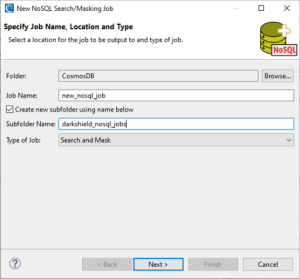
Afterward, click Next > to define the details of the data you want to find and how it should be masked.
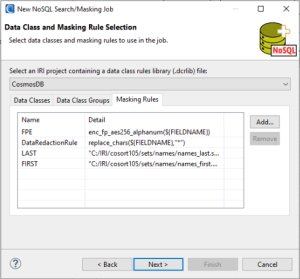
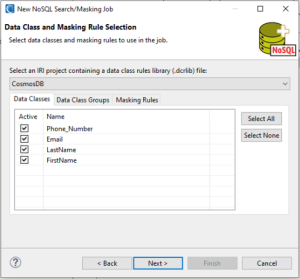
Then, on the Assign Masking Rules to Data Classes page, assign a masking rule to a data class and/ or data class group to define how PII will be masked.
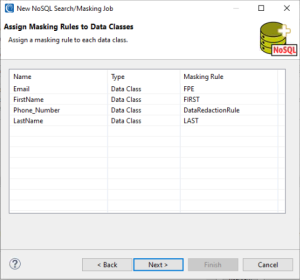
Finally, click Next > to select the NoSQL silo you want to search and mask.
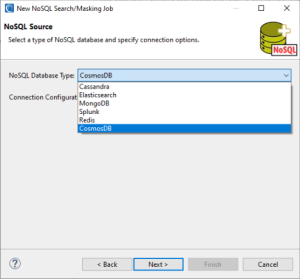
Connection Credentials
With the NoSQL database type selected, the next step is to create a new connection configuration, which gets saved in the connection registry:
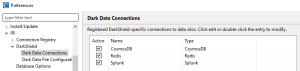
Example of Darkshield connection registry
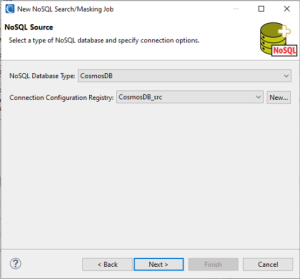
Depending on the database and scope of your search within it, the connection parameters vary:
Splunk Source Definitions
Index Search Configuration
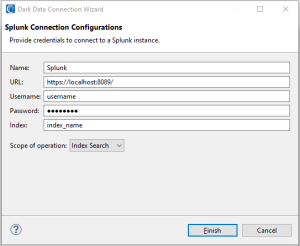
- Name: A user-defined name for the connection configuration
- URL: The Splunk instance URL
- Username & Password: Log-in credentials for user
- Index: The Splunk index to search within
- Scope of operation: An index search will search and mask PII within all contents within the specified index.
Query Search Configuration
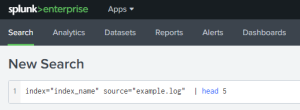
Splunk Web search bar with specified search criteria
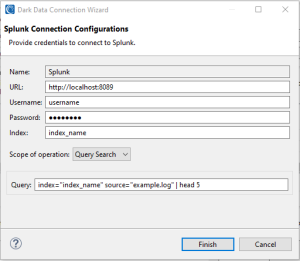
- Name: A user-defined name for the connection configuration
- URL: The Splunk instance URL
- Username & Password: Log-in credentials for user
- Index: The Splunk index to search within
- Scope of operation: Instead, a query search limits the operation according to the specified search criteria. Otherwise, Splunk performs an “All time” search when the query does not specify a time range.
Redis Source Definition
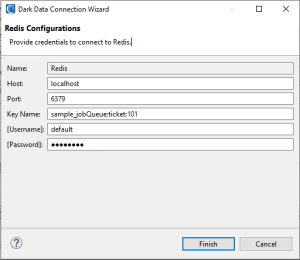
Similarly, Redis requires connection details that identify the server and the keys DarkShield should search.
- Name: A user-defined name for the connection configuration
- Host: The hostname or IP address of the Redis server
- Port: The port number on which the Redis server is listening (default is 6379)
- Key Name: The Redis key or key pattern to search within
- Username & Password: This setting is optional, depending on how your security is set up.
CosmosDB Source Definitions
Database Search Configuration
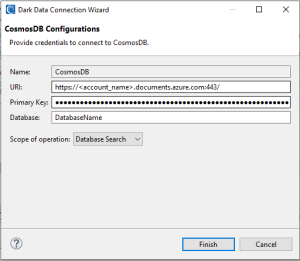
- Name: A user-defined name for the connection configuration
- URI: The URI of CosmosDB instance.
- Primary Key: The primary key for a CosmosDB connection
- Database: The database to search within
- Scope of operation: A database search will search and mask PII within all contents within the specified database.
Container Search Configuration
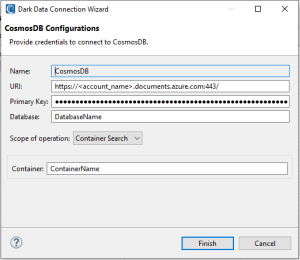
Alternatively, a container search limits the operation to the specified Cosmos DB container.
- Name: A user-defined name for the connection configuration
- URI: The URI of CosmosDB instance
- Primary Key: Primary key for CosmosDB connection
- Database: The database to search within
- Scope of operation: A container search will search and mask PII within all contents within the specified container.
Target Definition
After that, the NoSQL Target page defines where DarkShield will write the masked data. Creating a connection configuration for a data target follows the same steps as creating a data source.
To create a new connection configuration for a target, click New…
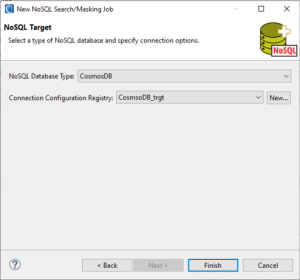
Creating a connection configuration for a data target follows the same steps as creating a data source.
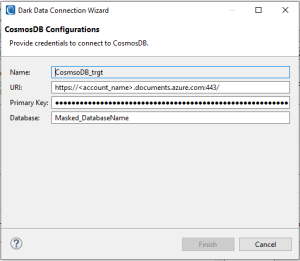
Example of a CosmosDB target connection registry
For example, the configuration above names a new database, so DarkShield creates it automatically to receive the masked data.
Once you configure the target silo for the masked data, click Finish to add it to the connection registry.
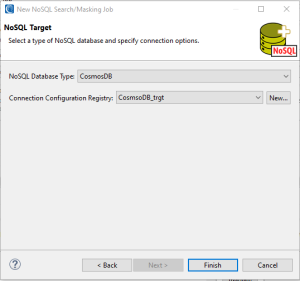
Alternatively, you can click Finish to use the same configurations as the source. But note that if you just re-use the source configuration in the target, your original source data will be overwritten.
Review & Run the Job
Subsequently, click Finish after selecting the NoSQL target to generate the DarkShield configuration (.dsc) file. Job details appear in, and can be edited in the IRI Workbench dialog like this:
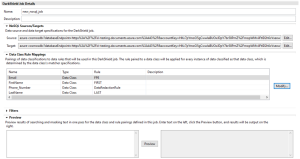
The IRI DarkShield Configuration (.dsc) file for a CosmosDB search and mask job
If you change the configuration, then save the job before running it.
To run a DarkShield Search and Mask Job right, click the .dsc file and select IRI > Run Search and Masking Job.
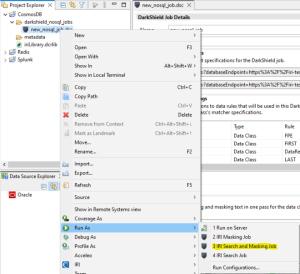
Thereafter, DarkShield writes the masked PII to the target silo you specified.
To illustrate, the examples below compare the original unmasked data with the masked results.
Data Masking Example in Splunk
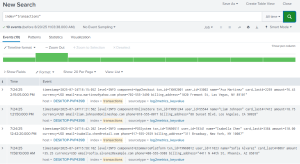
Splunk index unprotected
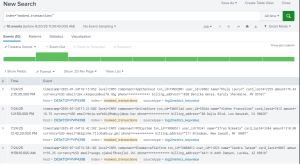
Splunk index protected
Masked Data Example in Redis
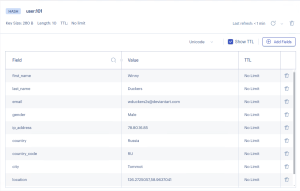
Redis hash unprotected
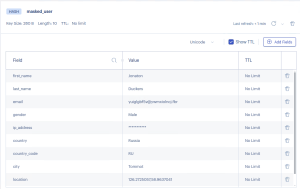
Redis hash protected
CosmosDB Data Masking Example
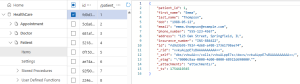
Before masking in Cosmos DB
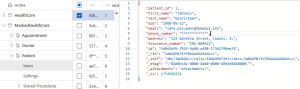
After masking in Cosmos DB
Overall, DarkShield applies the assigned masking rule consistently across structured, semi-structured, and unstructured sources. And when the masking rule is a deterministic masking function like format-preserving encryption, you can preserve referential integrity (masked value consistency) in every enterprise target.
Frequently Asked Questions
Which NoSQL platforms does DarkShield support in this workflow?
DarkShield supports Splunk, Redis, and Azure Cosmos DB in this article, in addition to other NoSQL platforms such as Cassandra, Elasticsearch, and MongoDB.
Can DarkShield search and mask PII in both Splunk indexes and query results?
Yes. DarkShield can search an entire Splunk index or use query criteria to limit the scope of the search and masking operation.
How does DarkShield connect to Redis?
A Redis connection uses the server host, port, key name or key pattern, and optional credentials depending on the security configuration.
Can DarkShield search an entire Cosmos DB database or just one container?
Yes. DarkShield supports both database-level and container-level searches in Azure Cosmos DB.
Can masked data be written to a different NoSQL target?
Yes. The NoSQL Target step lets users select a separate target connection for the masked data or reuse the source configuration.
What happens if the source and target use the same configuration?
If the same source configuration is reused as the target, the original data can be overwritten.
How does DarkShield keep masked values consistent across different data sources?
Deterministic masking methods such as format-preserving encryption can preserve masked-value consistency and referential integrity across enterprise targets.
Where are masking rules defined in a DarkShield NoSQL job?
Masking rules are assigned to data classes or data class groups in the wizard before the source and target NoSQL systems are selected.
If you would like more information about, or assistance with, discovering or de-identifying PII or other sensitive data in your on-premises or cloud sources, please email darkshield@iri.com.